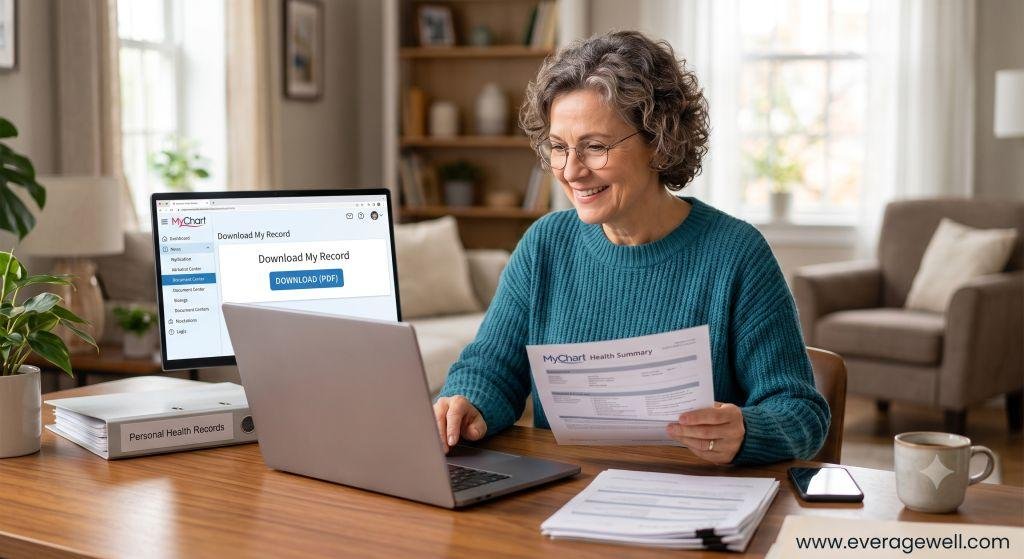
If you need to share lab results with a new specialist, prepare for Medicare open enrollment, or simply keep a personal backup in a home binder, knowing how to access your own clinical history is essential.
Finding the right button in a patient portal can sometimes feel like solving a puzzle, especially if your clinic or hospital system recently updated its website layout. Electronic health record systems have simplified record-keeping behind the scenes, but the patient-facing side occasionally leaves everyday users clicking in circles.
Learning how to download medical records from MyChart gives you immediate control over your personal health details without waiting on hold with the health information management (HIM) department or paying printing and postage fees.
In this guide, you will learn the exact steps to locate, export, and save your records on both desktop computers and smartphones, how to select specific test results versus complete summaries, and how to safely store sensitive medical data once it is on your device.
Quick Answer: How to Download Your Records
To download your medical records from MyChart quickly on a desktop browser:
- Log into your health network’s MyChart website.
- Open the main Menu (look for the three stacked lines or the top navigation bar).
- Scroll to the Sharing & Records or Document Center section.
- Click on Download My Record or Requested Records.
- Select a visit summary, specific date range, or lab panel, then click Download to save the file as a PDF to your computer.
On mobile devices using the MyChart app, navigate to Menu > Document Center > Download My Record, tap your desired clinical document, and choose Export or Save to Files.
What Is MyChart and Why Does It Matter?
MyChart is an electronic patient portal developed by Epic Systems, the software platform utilized by hundreds of leading healthcare systems across the United States, including Kaiser Permanente, Cleveland Clinic, Mayo Clinic, and numerous regional hospital networks.
At its core, MyChart acts as a direct, secure bridge between a clinic’s electronic health record (EHR) database and the patient. It allows you to review past office visits, review outpatient laboratory tests, message your physician, monitor active prescriptions, and inspect billing statements.
Under federal rules enacted via the 21st Century Cures Act, healthcare organizations are required by the U.S. Department of Health and Human Services (HHS) to give patients prompt, electronic access to their health information without unreasonable delay or excessive fees.
For patients managing multiple care teams, this digital access eliminates the old, cumbersome routine of filing written medical release forms and waiting weeks for a stack of paper records to arrive in the mail.
Comparison: MyChart Web Portal vs. Mobile App
While both platforms connect to the identical clinical chart, the experience of viewing and exporting records differs noticeably depending on whether you use a computer browser or the smartphone app.
| Feature / Task | Web Browser (Desktop / Laptop) | Mobile App (iOS / Android) |
| Best Used For | Printing, archiving full-year summaries, bulk downloads | Quick reference, messaging, showing a vaccine record at a clinic |
| File Format | Downloadable PDF, XML, or encrypted .zip folders | Viewable screen document, mobile PDF, or Apple Health sync |
| Document Range | Full chart histories, detailed visit notes, discharge summaries | Often truncated to visit overviews, imaging narratives, and labs |
| Storage Destination | Local hard drive, desktop folders, secure cloud drives | Device “Files” folder, mobile photo reel, or local app cache |
| Ease of Reading | Wide screen; multi-column lab charts are easier to read | Compact view; requires pinch-to-zoom for detailed tables |
| Export Method | Direct file save dialogue (Save As PDF) | Native mobile share sheet (AirDrop, Print, Save to Files) |
Detailed Breakdown: Key Features and Considerations
Navigating a digital patient portal requires familiarizing yourself with specific toolsets. Here are the major sections, settings, and considerations you encounter when pulling files from MyChart:
1. The Document Center
The Document Center is the central library of your account. Found within the main navigation menu, this hub splits your clinical information into categories: visit summaries, administrative documents, letters written by your clinician, and formal legal record sets requested from health information services.
2. Continuity of Care Documents (CCD)
When you request a full export, MyChart frequently generates an industry-standard Continuity of Care Document. This file outlines your active problems list, allergies, medication history, and recent vitals. It is formatted to be imported directly into a different hospital’s computer system, ensuring continuity between independent clinics.
3. After-Visit Summaries (AVS)
Following every office consultation, outpatient test, or hospital stay, an After-Visit Summary is published. Downloading your AVS files is ideal if you only want to recall what instructions a physician provided on a specific afternoon, such as dosage changes or scheduled follow-up dates.
4. Diagnostic Imaging Reports
It is important to recognize that MyChart typically provides the written radiologist interpretation, not the raw, diagnostic-quality DICOM image files (such as actual CT or MRI slice sets). If an out-of-network surgeon needs to examine the actual scan imagery, you will usually need to contact your hospital’s imaging center directly to request a digital disc or cloud image transfer.
5. Pathology and Biopsy Results
Under modern information-blocking regulations, pathology reports are commonly posted to your portal as soon as the laboratory finalizes them. Downloading these gives you exact clinical terminology, staging criteria, and margins that your specialist will want to review during a second opinion.
6. Immunization and Vaccine Records
The portal provides a clean, printable ledger of all vaccines administered within that health system, along with records pulled in from state immunization registries. This single-page document is convenient to download and store for travel clearances, volunteer roles, or community living requirements.
7. Clinical Visit Notes (OpenNotes)
Physicians, nurses, and physical therapists document their impressions in visit notes. Most health systems now publish these clinical notes directly to your portal under the OpenNotes framework. Downloading these allows you to read your provider’s clinical reasoning, differential diagnoses, and plan of care in detail.
8. Proxy Access and Dependent Accounts
If you manage medical decisions for an aging parent, spouse, or dependent child, MyChart allows linked “Proxy Access.” When downloading records, ensure you have selected the correct profile banner at the top of the interface so you do not accidentally export your own data instead of your family member’s chart.
9. File Formats: PDF vs. XML/ZIP
MyChart usually presents two options: a standard PDF or an XML-based file inside a .zip archive. Unless you are uploading data into specialized personal health software that requires machine-readable code, always choose the PDF format. PDFs preserve formatting, are simple to open on any device, and print reliably.
10. Multi-Hospital “Happy Together” Merged Records
Epic Systems features a capability named “Happy Together,” which links accounts across multiple participating health systems. While this feature lets you view data from two different hospital systems on a single screen, downloading the official legal record often requires logging directly into each health system’s specific portal instance separately.
Health Management & Coordination for Adults 50+
As we cross past the milestone of age 50, healthcare routines often shift from occasional acute checkups to managing ongoing, proactive wellness routines. Keeping personal, downloadable copies of your medical history supports this care transition.
Many older adults see more than one clinician. A routine year might include visits to a primary care internist, a cardiologist, an ophthalmologist, and a gastroenterologist. Because distinct private practices do not always run on the same software, records can easily fall through communication cracks.
When you download and organize your records, you act as your own best health coordinator. You can verify that your kidney function markers (like eGFR and creatinine) are consistently monitored across prescriptions, confirm when you last received a pneumonia or shingles vaccine, and ensure every physician has your current medication list, down to exact dosages and supplements.
For practical strategies on maintaining balanced vitality, daily wellness habits, and healthy longevity as you age, explore the educational lifestyle resources available across Ever Age Well.
Benefits of Keeping Your Own Digital Medical Records
Maintaining your own offline digital archive offers several clear advantages:
- Eliminates Repetitive Testing: If you switch insurance plans or visit an urgent care center away from home, showing recent blood panels or diagnostic reports directly from your phone or tablet can prevent doctors from ordering redundant, costly tests.
- Streamlines Second Opinions: Medical specialists rely heavily on historical data to track changes over time. Handing a new physician your organized records saves valuable consultation time that would otherwise be spent waiting on fax transmissions.
- Empowers Family Caregivers: In the event of an unexpected illness or emergency, having easily retrievable records ensures your health proxy or family members can accurately describe your medical baseline to hospital triage teams.
- Protects Against Technical Glitches: Health systems occasionally migrate software, change vendor platforms, or archive patient accounts after several years of inactivity. Downloading your files guarantees permanent, personal custody of your history.
Potential Risks, Privacy Concerns, and Technical Drawbacks
While immediate access to your medical history is empowering, taking personal custody of your data requires careful attention to digital hygiene:
- Lack of HIPAA Protection on Personal Devices: The Health Insurance Portability and Accountability Act (HIPAA) strictly governs how hospitals, clinics, and health plans secure your data. However, once you download a PDF onto your home computer, tablet, or phone, that file is no longer protected by federal healthcare privacy laws. Its security depends entirely on your own device settings.
- Unintentional Sharing via Public Networks: Downloading sensitive records while connected to public, unencrypted Wi-Fi (such as in airports, hotels, or coffee shops) creates opportunities for data snooping.
- Misinterpreting Raw Lab Results: Lab data frequently lands in your MyChart account before your doctor has had a chance to review it. Seeing an “out-of-range” flag can trigger unnecessary worry before your provider can explain what that value means in the context of your overall health.
- Incomplete Historical Data: Electronic patient portals typically hold only the information recorded since that particular health system adopted the EHR system. If you saw a doctor fifteen years ago at the same clinic, older paper records may still be stored in an off-site physical archive.
Practical Digital Safety Habits
Follow these actionable guidelines to keep your downloaded health data secure:
- Use Dedicated Folders: Create an encrypted or password-protected folder on your desktop labeled
Health Records - Personal. Avoid leaving sensitive PDFs in your general “Downloads” folder where they can be accidentally opened or shared. - Turn On Two-Factor Authentication (2FA): Enable 2FA on your MyChart account. This requires entering a temporary verification code sent to your phone or email whenever you log in from a new browser.
- Label Files Clearly: When saving documents, rename generic file titles (such as
Document_1029384.pdf) to clear names like2026-05-LipidPanel-DrMiller.pdf. This makes files effortless to locate when you need them. - Log Out Completely: When using a shared home computer, always click Sign Out when you are done. Simply closing the browser tab does not always terminate your session immediately.
- Be Selective with Cloud Storage: If you sync records to cloud storage platforms (such as Google Drive, OneDrive, or Dropbox), ensure that your primary cloud account uses a strong, unique password and two-step verification.
Real-Life Scenarios: When Having Your Records Matters
Scenario 1: Transitioning to a New Specialist
A 62-year-old patient with mild hypertension is referred to a new nephrologist across town.
Rather than waiting for the two health systems to coordinate record transfers, the patient logs into MyChart, downloads the last three years of metabolic blood panels and blood pressure logs, and saves them to a tablet. At the first appointment, the specialist immediately reviews the historical trend, avoiding the need to order repeated baseline labs.
Scenario 2: Emergency Room Care While Traveling
A couple in their early 70s is traveling out of state when one spouse develops sudden chest discomfort.
At the local emergency room, the attending physician asks whether the patient has ever had an abnormal baseline electrocardiogram (ECG). The spouse pulls up the MyChart app on a smartphone, opens the downloaded cardiology summary from six months earlier, and shows the physician the previous ECG interpretation, speeding up diagnosis and treatment.
Common Myths About MyChart Records
Myth: MyChart contains every medical record from my entire life.
Fact: MyChart only displays information recorded by providers who use that specific software instance, or external clinics that have been directly linked. Records from older clinics or military facilities must still be requested through traditional medical release channels.
Myth: Downloading a record removes it from the hospital’s main system.
Fact: Downloading only creates a digital copy on your computer or phone. Your official, legal medical record remains securely stored inside the healthcare organization’s central database.
Myth: My doctor gets notified every time I download a document.
Fact: While system administrators have access to background security audit logs, your personal physician does not receive an alert or notification when you export your lab reports or visit notes.
Myth: I have to pay a processing fee to download my PDF records.
Fact: Accessing and downloading your electronic records through the MyChart web portal or mobile app is entirely free under federal data-sharing rules.
Myth: If a test result is flagged in red, it indicates a medical emergency.
Fact: A red indicator or an “out-of-range” flag simply means the result sits slightly outside standard statistical reference ranges. Many fluctuations are normal, expected, or harmless based on individual medical baselines.
Who Should Be Especially Mindful of Medical Record Tracking?
Active record monitoring and consistent archiving are particularly valuable for:
- Adults Managing Chronic Conditions: Individuals monitoring diabetes, heart disease, thyroid conditions, or kidney disease benefit from tracking their own lab markers over multi-year spans.
- Individuals Taking Multiple Prescriptions: Keeping an accurate record helps spot medication discrepancies or potential drug-drug interactions between specialists.
- Patients Planning Surgery or Procedures: Having pre-operative clearance letters, past anesthesia notes, and recent imaging reports readily accessible prevents day-of-surgery delays.
- Adult Children and Family Caregivers: Authorized proxies caring for older family members need ready access to health data to coordinate home care visits, physical therapy, and appointments.
Step-by-Step: Getting Started with Your Download
Follow this straightforward sequence to export your records:
[Log into MyChart Portal]
          │
          ▼
[Open Main Menu Navigation]
          │
          ▼
[Locate "Sharing & Records" / "Document Center"]
          │
          ▼
[Select "Download My Record"]
          │
          ▼
[Choose: Visit Summary vs. Date Range]
          │
          ▼
[Download & Save Secure PDF to Device]
- Sign In: Open your web browser, navigate to your local healthcare provider’s MyChart login page, and enter your credentials.
- Access the Navigation Menu: Click the Menu button (usually represented by an icon with three horizontal lines in the upper-left or upper-right corner).
- Locate the Record Tools: Scroll down to the category titled Sharing & Records or Document Center.
- Choose Download Options: Select Download My Record. Here, you can select whether you want a summary of a single visit, a full Continuity of Care document, or records spanning a custom date range.
- Generate and Save: Click the Download or Export button. When prompted by your computer, save the file into your secure personal health folder.
Frequently Asked Questions (FAQs)
What is the easiest way to download medical records from MyChart?
The simplest method is logging into your provider’s MyChart portal on a desktop web browser, opening the Menu, navigating to the Document Center, and selecting Download My Record to save a PDF file directly to your computer.
Can I download all my medical records at once?
You can download a comprehensive Continuity of Care Document (CCD) that summarizes your diagnoses, medications, allergies, immunization records, and recent lab results in one file. However, exhaustive historical charts spanning decades may require an official release request through your hospital’s Health Information Management (HIM) department.
Why can’t I see the download option on my MyChart mobile app?
Certain health systems customize their mobile interfaces to streamline navigation, which can occasionally hide deeper export features. If the app only allows viewing, log in via a web browser (such as Safari, Chrome, or Edge) on your phone or desktop to access full download options.
What should I do if a record has incorrect information?
If you discover inaccurate diagnoses, old medications, or incorrect surgical dates in your downloaded records, submit a formal amendment request. Most MyChart portals offer a “Request a Correction” link within the Document Center, or you can contact the clinic’s privacy office directly.
Are downloaded MyChart records considered official legal documents?
Downloaded PDFs are generally accepted by outside doctors, clinics, and insurance providers for routine care coordination. However, certain legal, disability, or government proceedings may require a formally certified record stamped directly by the hospital’s custodian of records.
How do I print my downloaded records?
Once the file is saved as a PDF on your device, open it using your preferred document viewer (such as Adobe Acrobat, Apple Preview, or your web browser) and select File > Print or press Ctrl + P (Windows) / Cmd + P (Mac).
Can I export records for a family member or parent?
Yes, provided you have formal Proxy Access established through the healthcare provider. Once granted, you can switch profiles inside MyChart to view and download records for your dependent or aging parent.
What file format should I choose: PDF or XML?
Choose PDF. PDFs are easily read, shared, and printed on standard consumer devices. XML files are machine-readable documents designed to be imported directly into clinical electronic databases.
Does it cost any money to download records from MyChart?
No. Electronic access and downloads via the patient portal are completely free for patients under federal health information regulations.
Can I download past laboratory results in a single spreadsheet?
Some MyChart installations allow you to view lab trends over time and export the underlying data points as a .csv file. Look for a small “Export” or graph icon located directly above your cumulative lab result tables.
Final Takeaway
Taking a few minutes to download your medical records from MyChart ensures you always have immediate access to your health history when it matters most. Rather than leaving your clinical information scattered across multiple hospital databases, building a secure, personal digital health archive puts you in control of your care. Set aside time every few months—especially following an annual physical or a change in your health plan—to log in, save fresh summaries, and keep your personal records current.
Medical Disclaimer
This article is intended strictly for general informational and educational purposes. It does not provide medical diagnosis, treatment, or legal health advice. For specific questions regarding clinical interpretations, test results, or obtaining certified legal copies of medical charts, always consult directly with your licensed physician or your healthcare facility’s Health Information Management department.
Related EverAgeWell Reading
- Ideal Weight Chart by Height — useful for comparing healthy weight ranges across different heights.
- BMI Chart for Adults — explains adult BMI categories and how to interpret them.
- Cholesterol Levels Chart — helpful when looking at weight alongside heart-health numbers.
- Blood Glucose Level Chart — explains common blood glucose ranges and what the numbers mean.
- Blood Pressure Chart for Seniors — useful for adults over 50 monitoring another important health measurement.
- How to Keep Your Mind Sharp at Any Age — additional healthy-aging reading for adults over 50.
Written by
Kanhaiya Solanki is a dedicated online researcher, content writer, and blogger passionate about publishing high-quality, research-based articles. His goal is to provide accurate, easy-to-understand, and practical information on health, technology, senior care, and lifestyle topics for readers worldwide.